Meshtastic & Me
First things first: I am not a mesh, LoRa, or Meshtastic pro. Far from it. I am but a little n00b that somehow entered the Mastodon-to-RetroHandhelds-to-LoRa pipeline, and as a result has been messing with Meshtastic for a couple weeks.
Anyways, in those couple weeks, I’ve discovered a few things that I figure might be helpful for others. Mistakes I made so you don’t have to. 🙂
This article focuses on Meshtastic in a Canadian context, simply because that is what I am familiar with; these tips may not apply to you if you are elsewhere in the world, and/or if you are using Meshcore or any other ecosystem. If you don’t know what “LoRa” or “mesh” or really any of these words mean, this little zine from a couple years ago is a great, high-level introduction to the hobby.
So if you can program your Heltec v4 one-handed while juggling geese with the other hand, or if you are an Advanced ham with Morse qualification who’s been operating for 25 years and has been in the Meshtastic world since its inception, there’s a really good chance none of the below is news to you!1
The Devices
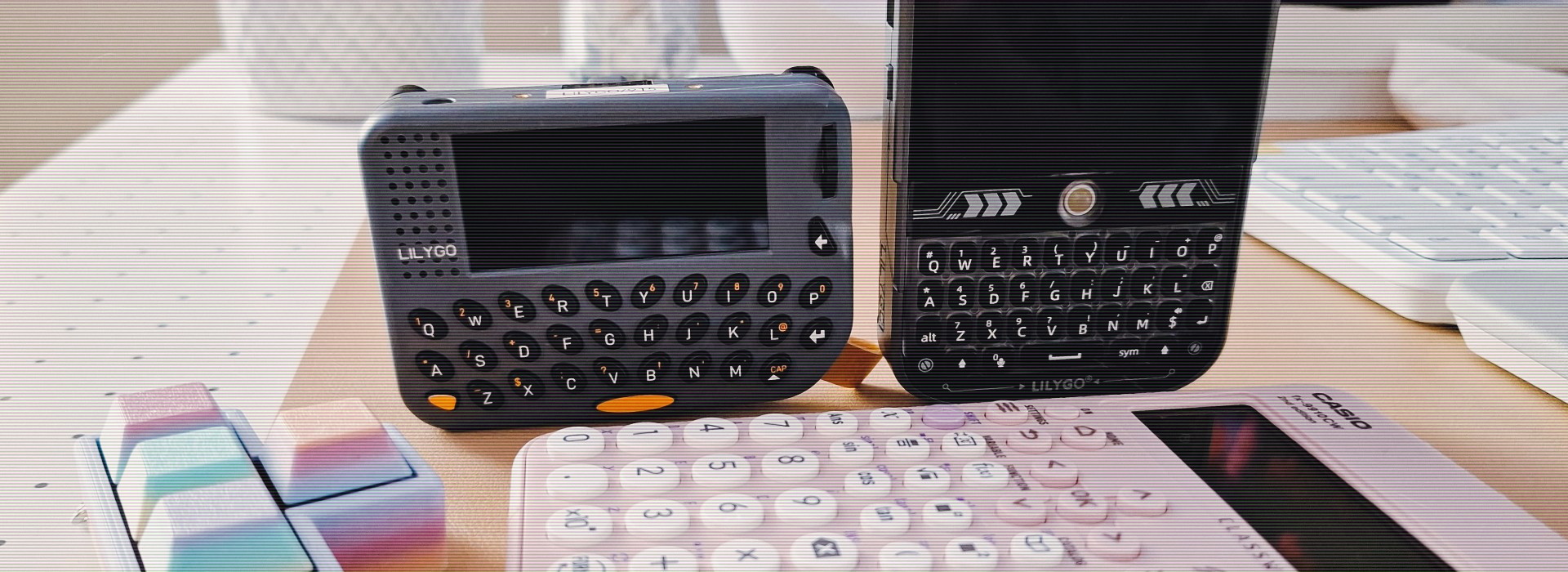
So far, I have flashed Meshtastic onto the following devices:
I call them the “Deck” and the “Pager,” because “honey, where’s my LILYGO T-LoRa Pager?” is way too much of a mouthful.
IMHO they are great starter devices, especially if you are looking for mobile nodes, as they come with all the trimmings to use them on the go as a one-stop shop - screen, keyboard, case, battery.
There are absolutely more powerful devices out there, and devices that are more appropriate for a particular job - but these two devices, I find, provide a really easy entry point to the LoRa/mesh world that is almost plug & play.
The Tips
You May be able to Buy Nodes With Meshtastic Preinstalled
While the OG versions of the Deck and the Pager ship with Lilygo firmware on them, these days, there are Meshtastic versions available. In theory, anyway. They may be sold out when you check. The benefit of buying the Meshtastic version is that you can skip the initial flashing step.
Personally, I found the flashing very straightforward (once you have verified that your USB cable isn’t power-only…), so I wouldn’t be too concerned with buying a non-Meshtastic version, and flashing the system yourself.
Get the Right Hardware
Before you pull the trigger on any device, especially if it is your first:
Check your local rules and regulations.
Once you have confirmed those, make sure you buy the right version of whatever device you’d like. Namely, the one that will work in your area from a technological standpoint, and that is also within the rules of operation. You may be able to ask experienced mesh-ers in your area, or your local ham radio club, for advice. Networks like Mastodon or Reddit tend to also have active LoRa/mesh communities, and someone from your region may have asked those same questions before!
Generally, these LoRa devices tend to be pre-built in such a way that they use the ISM frequency bands of whichever region they’re meant to operate in. ISM bands (“industrial, scientific, medical”) are the ones that often allow unlicensed operation, which means operators of these little devices may not need to be licensed hams.
For example, for Canada, you’d want the 915MHz version, as that is the centre of the Canadian ISM band.
Make sure you check your local legislation before you buy anything - this is not an exhaustive list of questions to ask and confirm, but just something to get you started:
- Are there bands in your region that unlicensed operators are allowed to use with this type of device?
- These bands may be called “ISM” bands, or use a different name, depending on your region/language.
- What are the frequencies in that band?
- Is there legislation around radio operating that you need to consider?
It is your responsibility to find out whether you are allowed to use these devices in your location, and at what frequencies.
Meshtastic and Meshcore are Not The Same
Same first syllable, entirely different systems. Meshcore is similar to Meshtastic, and also a great option. Some people prefer it over Meshtastic. Which one is a better fit for you really depends on your use case and the community around you - just be aware that these systems don’t interact.
You do not have to pick Meshtastic - you can play around with both Meshtastic and Meshcore, and see which you like better.
You can also read excellent articles like this one by BrokenSignal and then decide. Or maybe the decision is being made for you, in a way - If your buddies already have LoRa devices, and they’re running Meshcore, it might make sense to install Meshcore. If there is a local club you’d like to join, and they use Meshtastic, go with Meshtastic. You can always switch.
Read Up on What the Hardware Buttons Do
… ideally before you start using them. Especially if they’re not labelled.
Did you know that, for example, the middle button on the Pager, called BOOT, sends a ping to the entire network if you tap it twice?
Yep. I didn’t. And so when the pager got stuck during initial setup, and I was trying to get it to reboot, and I thought the BOOT button might to the trick, I pinged the entire network with an emtpy message. Super cool. SORRY ALL. 🙏🏼
So that was my first contribution to the LoRa world! I figured I’d get the embarrassing stuff out of the way on day one, y’know. And then I took a fine-point sharpie and labelled those suckers, because they look completely identical and there’s no way I’ll remember which is which.
Bluetooth, WiFi, and UI Modes
You can either use Bluetooth or WiFi on Meshtastic. Not both at the same time. So if you’re trying your darndest to establish a Bluetooth connection to your phone, and it’s not working, check whether WiFi is enabled, and turn it off if necessary.
Another reason your Bluetooth connection may not be working is that Bluetooth does not currently work under the “fancy” Meshtastic UI (looks like this).
Meaning, on a device like the Deck, which has the fancy Meshtastic UI (not base Meshtastic, which looks like what you see in this picture of my Pager, or in the picture at the top of this post), you may need to exit said fancy UI to use Bluetooth. You can boot into Bluetooth mode (also called “programming mode”) by going to the shutdown/reboot menu, and tapping the big ol’ Bluetooth logo in the centre.
You Do Not Have to Broadcast Your Location
If you are the privacy-conscious kind, and you don’t want every other mesher in your area to see where your node is located, you do not have to broadcast your location. There are different ways to accomplish this:
- On GPS-enabled devices (i.e. those that come with a GPS module on board), you can turn GPS off entirely by setting the GPS mode to
DISABLED. - If you want to share your location in a vague way, you can choose to share your location, but with a “buffer” that takes away precision - you are somewhere in a circle, basically. Adjust this per channel in the Position Precision setting.
- You can also go with the fixed GPS position option. You basically set coordinates in the app, and from then on, your device will claim that it is situated at that location. Great for stationary nodes, or other scenarios where you don’t need your location to be “moving” with you.
- You can configure location sharing per channel. For example, you can disable location sharing on the public channel, but keep it enabled for your local hiking buddies group.
Discussing all these options in detail goes beyond the scope of this small article - this is just to highlight that you have options. You are not locked in to sharing your location, or into sharing your exact location, and you can change this per channel as well. You can read more about position configuration in this introductory Meshtastic config document, or in this Getting Started article by W7PEA.
MQTT plays into this to an extent as well, but in a different way; you can disable MQTT via the app too. That way, you don’t appear on mesh maps. (More on those below.)
I Picked Up a Node from Across the Continent!! Wow my Default Antenna is Good!!
Sorry to be the bearer of bad news, but - you probably didn’t, and the default antenna probably isn’t that great. Unless your continent is very, very small, and both the sender and the receiver were standing on mountaintops at the time, it’s more likely that one of the following two things happened:
- Location can be, and often is, spoofed. Remember the “fixed GPS” option from the previous section? Yep. That. Probably someone just set their fixed location to somewhere, either wanting to obscure their actual location, and/or they forgot to update the fixed location as they moved around.
- MQTT. I believe Meshtastic now shows if you “met” a node via MQTT (it’ll say
(MQTT)after the node name), but that essentially means your node encountered the node via MQTT, not via a direct connection or via limited hops.
Careful When Adding Channels from Another Device via QR Code
I have made the discovery that adding another channel via QR code from another device will in fact overwrite your existing channels, even if you have selected to Add the channels (not Replace them), and even if Meshtastic very clearly says your existing channels will be preserved.
I know this because this is the exact way I nuked my LongFast default 0 channel, and a private channel I had set up for testing. This may very well be a bug that gets ironed out at some point, but for the time being - just be aware of this, I suppose?
I have also anecdotally read, for example in this article by Puget Mesh, that using a QR code to import channels may override other module settings - this isn’t something I have observed myself, but a thing that can apparently happen.
No Need to Stick with that Grating Ringtone
The Deck is very pleasant in terms of the ringtones it offers by default, plus you can simply choose them from a dropdown in the UI. The Pager? Less so. The way I would describe that default ringtone is grating. Gets you in the fillings.
However! There is no need to stick with it. Unfortunately, there is no dropdown to leverage here, but: You can use RTTTL notation to change the ringtone in the app when you’re connected via Bluetooth. If RTTTL doesn’t ring a bell, it’s basically a notation format for old-timey ringtones. Mountain Mesh has a little page on it with an explanation and some short samples.
For more resources, here’s a composer, and another composer with some sample tunes, and an online RTTTL player.
<tap tap> Is This Thing On?
If you boot into Meshtastic, and you don’t see any other nodes at all, but you are in a populated area and reasonably confident someone here has a node up: Leave your device on for a bit. Give it some time.
If I just leave my node up for five minutes here and there, it won’t see many nodes. If I leave it on for an afternoon and/or evening, bam, 20-30 nodes.
Why Should I Even Bother, There’s no Nodes on the Map(s)
Occasionally I see people comment online that they were interested in trying out mesh/LoRa technology, but then they checked a map (usually it’s one of these two), and there’s nobody who runs Meshtastic near where they are. They feel disappointed, think this is dead on arrival, close the tab, and that’s the end of their mesh journey.
A couple notes:
- You may also see this in the popup when you first access Liam Cottle’s map, but: The map shows nodes that have sent a valid position to MQTT. A lot of meshers (is that a word) don’t have their nodes send comms to MQTT. It is not unusual for me to see only 3-4 nodes on the map in my area, but when I have my nodes up, I can see 10-15 other nodes on the network that are all <=5 hops away from me.
- Of course, for a node to send a GPS signal, that node must have GPS enabled, either via on-board hardware, or a Bluetooth connection to a phone that has GPS enabled, or send a fixed location. This, too, is a feature that many folks don’t always, or ever, have enabled on their devices (as we saw above, this can be disabled) - and then those devices wouldn’t show up on a map.
- Maps also often purge nodes that haven’t been seen in a certain time span (usually a couple days). So if the owner of three nodes is out of town on vacation, and has had their equipment turned off for ten days, their nodes may not show up, but that doesn’t mean there’s no Meshtastic nodes nearby on a regular basis.
Yes, You Can Edit Canned Messages! (Yay 🥳)
Those little preset messages that you can select and send, without having to type them into your device? You are not stuck with them. You can edit them to your heart’s content (well, and to the maximum of what’ll fit).
You can access the string field via the settings cog > Module configuration > Canned Message on the app. Here’s a great YouTube video2 by ShotokuTech that explains the process in detail.
Join a Community
Whether that’s in your local area - look for mesh or radio clubs - or on reddit or Mastodon, start posting about your hobby! You will find that other enthusiasts will positively descend upon your excited mesh postings. Follow some hashtags, subscribe to the subreddit, and you might even learn a thing or two!
I am still learning, and it is entirely possible I’ve gotten something wrong. If that is the case, please feel free to get in touch!